


Quickstart — Level Up in 4 Steps
> Read this first — measure only at a standstill. The 040 Level is a highly sensitive tilt sensor that also uses acceleration values. While driving, over bumps or when the van wobbles, the readings jump a lot — that's not a malfunction, just normal measurement physics. So always measure at a standstill. In the expert menu you can fine-tune the smoothing: it averages the most recent readings and calms the display (with a slight delay — also not a defect). > > The smooth routine: drive onto the spot → pause for a moment → are all pills yellow? → switch on the wedge calculation → place the wedges at the shown position → drive up slowly and carefully → check again → green? Done. If not, drive up a little more or back off slightly.
Step 1 — Download & Open the App
Get the 040 Level App — completely free. You'll find the official download badges right at the top of this page.
Make sure Bluetooth is turned on.
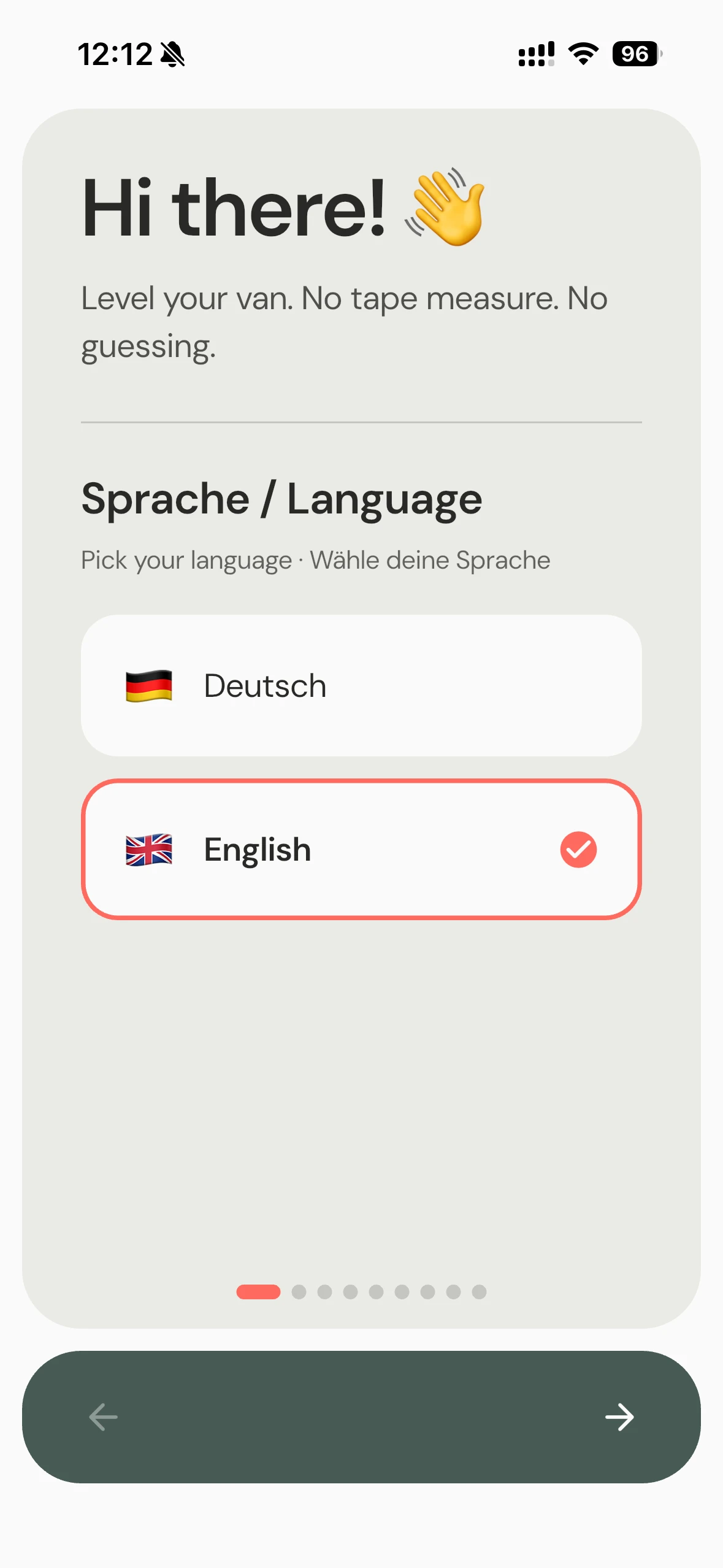
On first launch you pick your language. Then a short walkthrough runs — just tap through with Next. When the app asks for Bluetooth: tap Accept. During the walkthrough you can already set up your vehicle settings — vehicle type, track width, wheelbase, and your leveling equipment.
Step 2 — Activate the Sensor
Grab your 040 Level Sensor.
1. Unscrew the lid 2. Hold the button for 3 seconds — the sensor wakes up 3. Screw the lid back on
After the first activation you have 30 seconds to connect the sensor to the app for the first time.
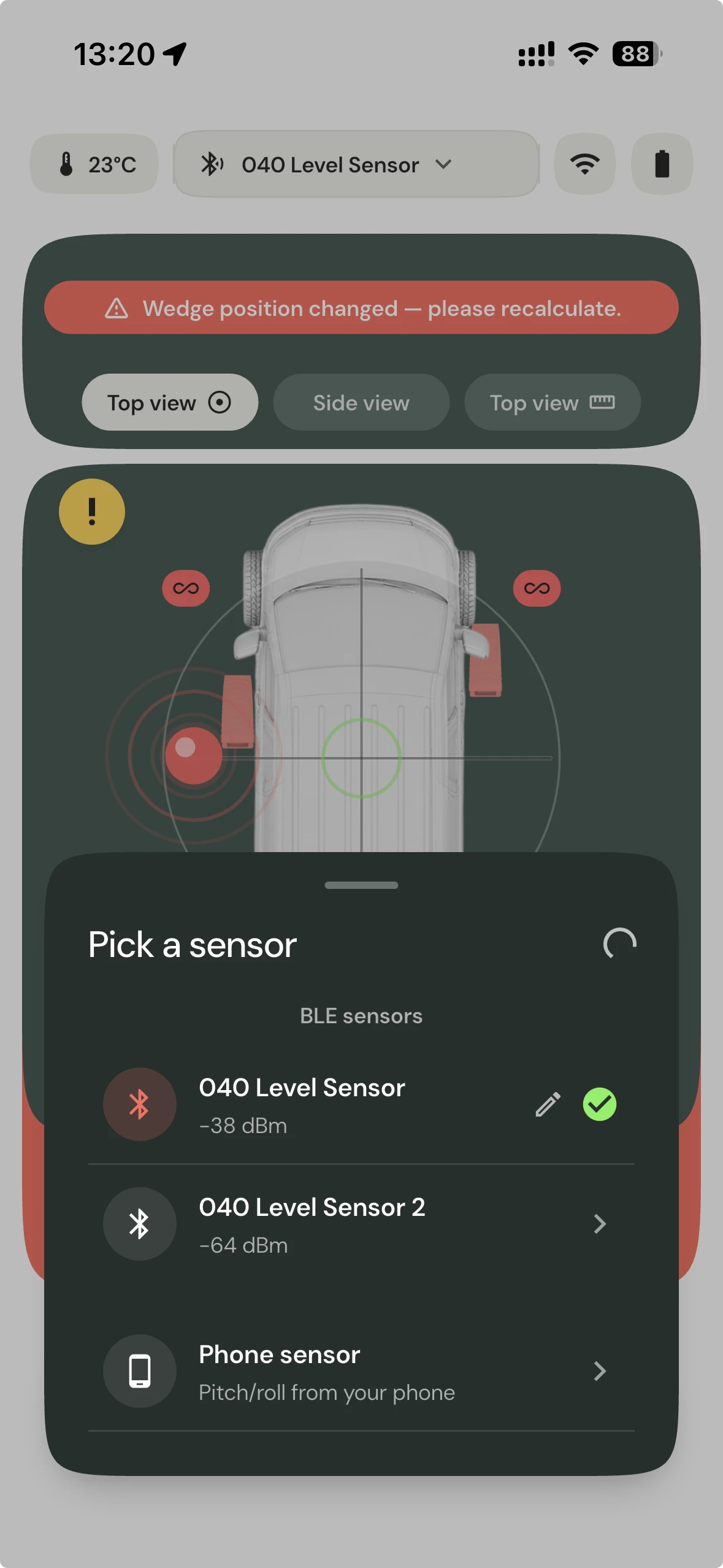
Your sensor appears as "040_level_XXXXX" right in the app. Tap it — done. From now on it connects automatically whenever you're nearby.
> Tip: You can rename the sensor at any time — just go to the Sensor Menu in the app.
Step 3 — Mount & Calibrate
Mount the sensor anywhere in or on the vehicle — inside the cabinet, under the table, under the bed, vertically on the wall, on the drawbar, under the vehicle, sideways, or upside down. Any position, any location.
> Where in the van? It doesn't have to be the center — the app measures tilt, and that's identical everywhere in the vehicle. All that matters: mount it firmly to the vehicle (a stiff surface, not thin flexible trim) and keep it reachable for the battery swap. Off-limits are moving parts like the pop-up roof (including its floor), the sliding door or any flap — they tilt away when opened and throw off the reading. The sensor belongs on the part that sits on the wheels.
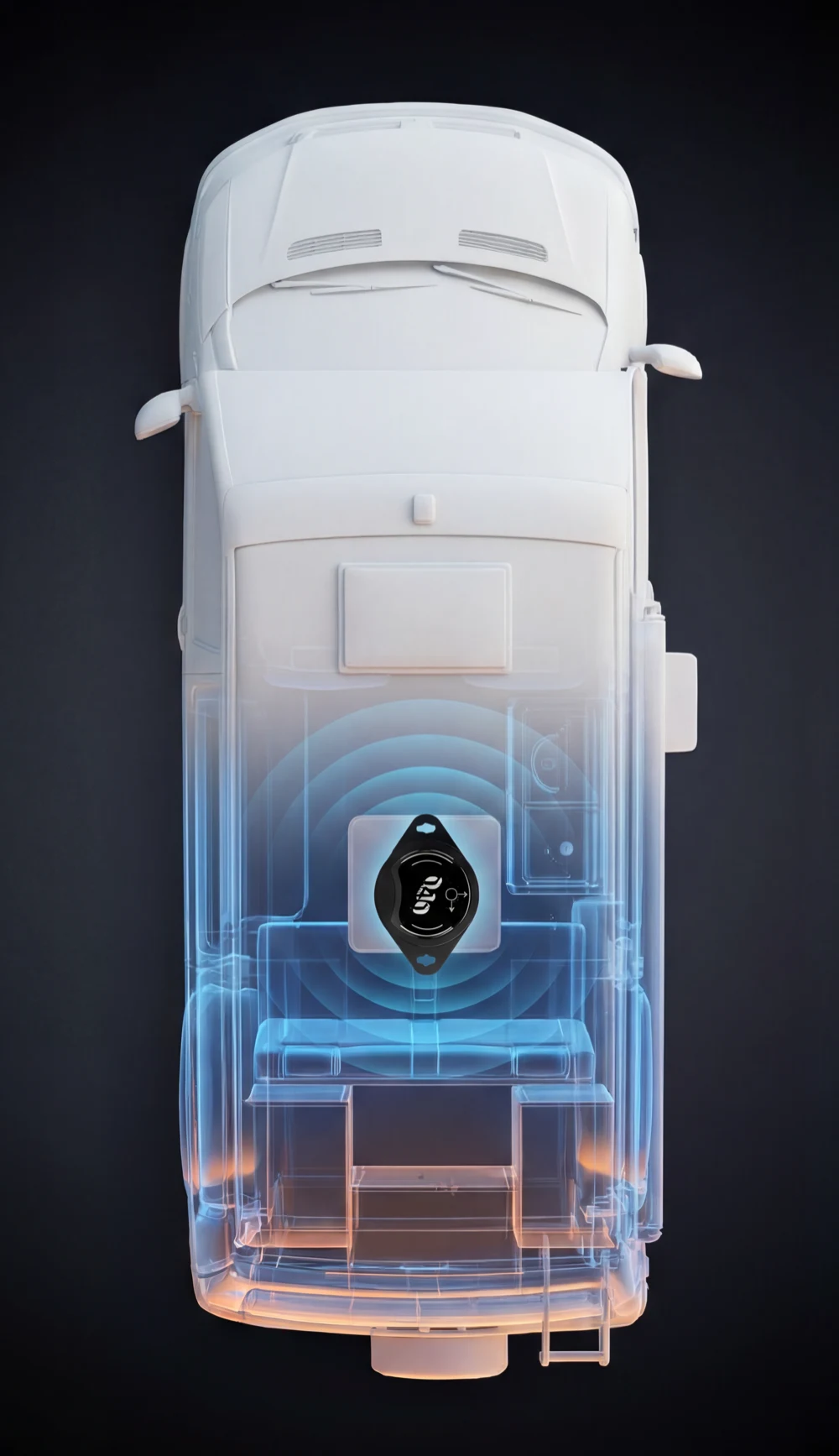
The only thing that matters: the printed arrows on the sensor must be aligned with the vehicle axes — meaning the red or white arrow points cleanly forward, backward, left, or right along the vehicle axis. You set this orientation once in the app.
- Red arrow → example: pointing forward (driving direction)
- White arrow → example: pointing sideways
Then calibrate once ("Zero"):
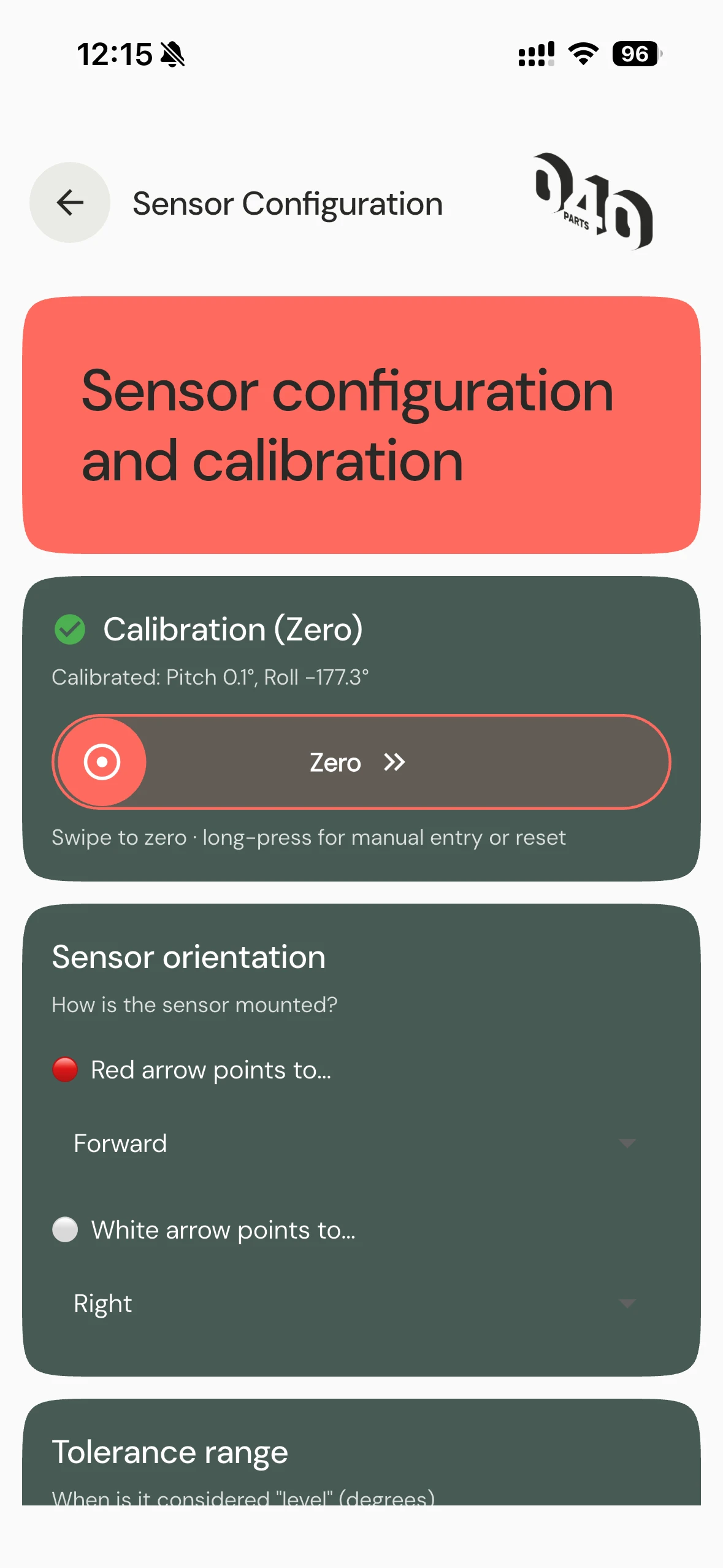
1. Place the vehicle on the flattest surface you can find 2. In the Sensor Menu → Zero swipe it 3. Swipe Confirm
You only do this once. As long as the sensor stays mounted, you're good.
Step 4 — Drive On & Level
Now the fun part.
The app shows 3 views — switch between them by swiping or tapping the dots:
- Top View 1 — Vehicle from above with a bubble level: see at a glance whether the vehicle is already level
- Side View — Vehicles from the front AND side simultaneously: pitch (front/rear) and roll (left/right) angle at a glance
- Top View 2 — Vehicle from above with sliders for the roll and pitch axes
> Tip: The Top Views are the main views for leveling and wedge display.
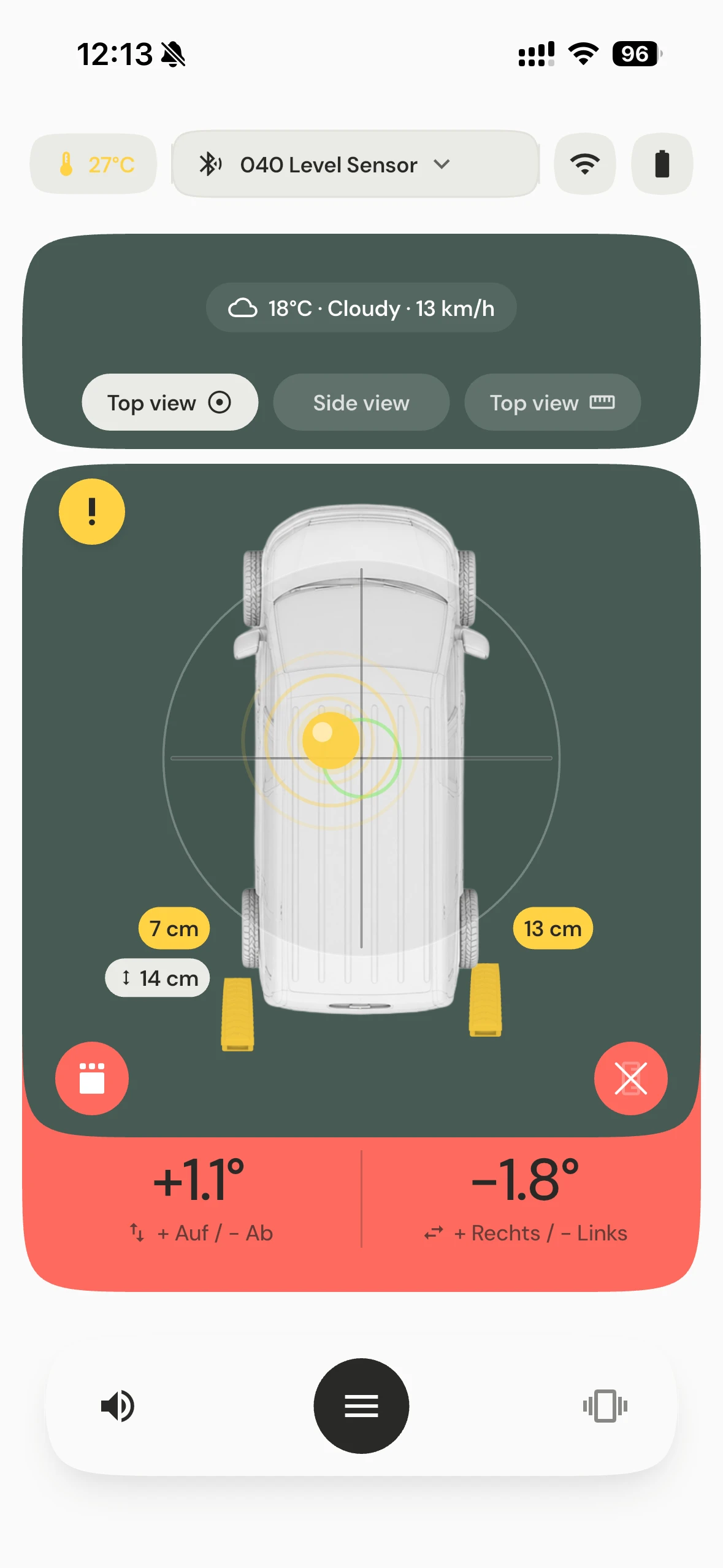
You arrive at your pitch and slowly drive in with the app open — watch the colored indicator pills in the app:
- Yellow = your wedges are sufficient to level the vehicle — place the wedges and drive on
- Red = move the vehicle forward or back a few centimeters — on uneven ground even a small shift changes the readings significantly, because no surface is perfectly flat
- Green = you're level ✓
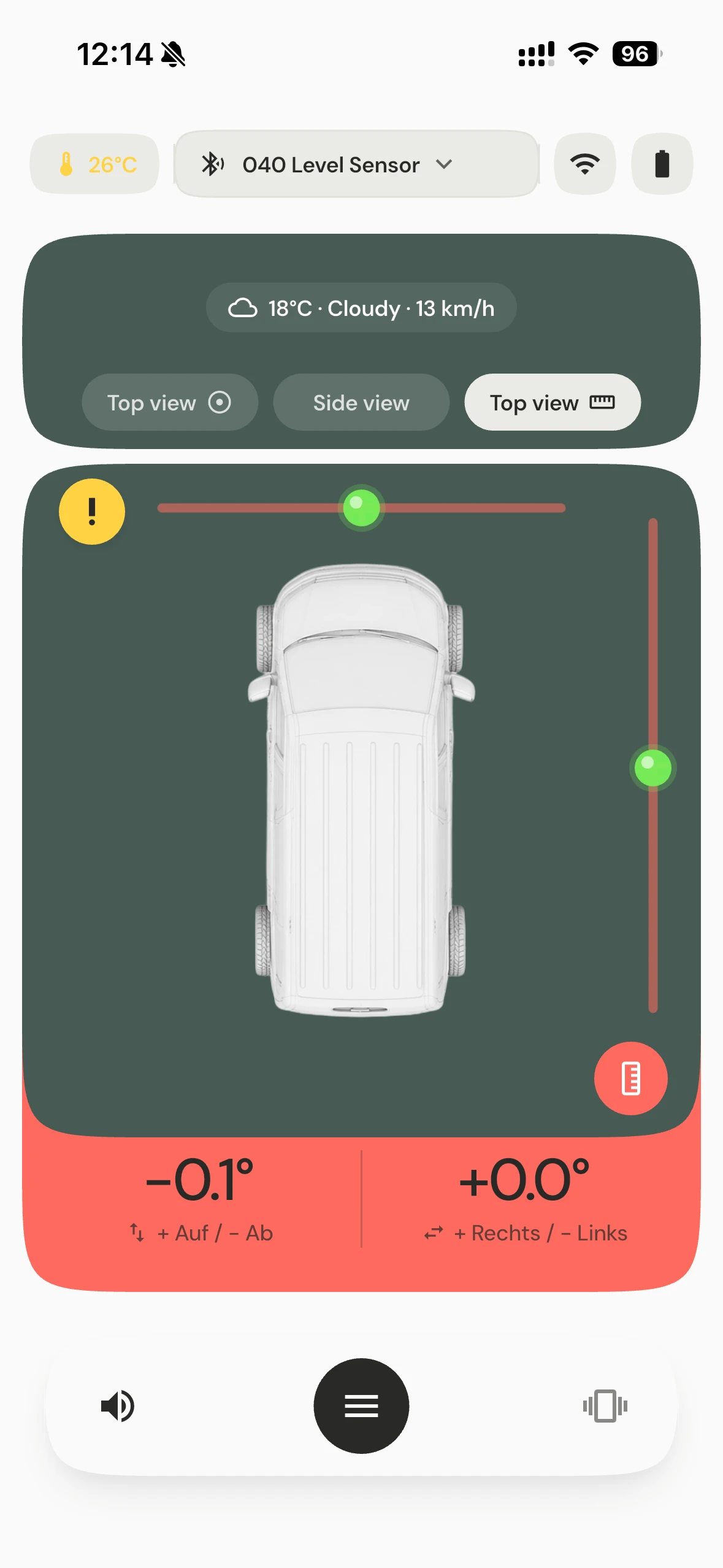
1. Place the wedge in front of the recommended wheel 2. Slowly drive forward — the app beeps like a parking sensor as long as you need to go further 3. Continuous tone = Stop! You're level. Handbrake on, engine off.
> Note: The readings are approximations — no ground is perfect, no wedge is identical, some sink in over time. A few degrees of remaining deviation are completely normal. The app gets you close to level; the last millimeter is up to nature.
That's it!
Next time at a new pitch the app connects to the sensor automatically — you drive straight in.
More comfort:
- No sound? → Tap the Sound icon in the bottom bar
- Vibration on/off? → Tap the Vibration icon next to it
- Recalibrate the sensor? → Zero in the Sensor Menu (only when sensor is connected)
- Questions? → Get in touch — we're happy to help personally
The app is brand new — we love hearing from you!
Bugs, feature requests, ideas — all welcome. You can write to us directly from the Help Menu in the app. Every report helps us improve the product and make the app more user-friendly for everyone. Thank you!
See you on the road — your 040 Team